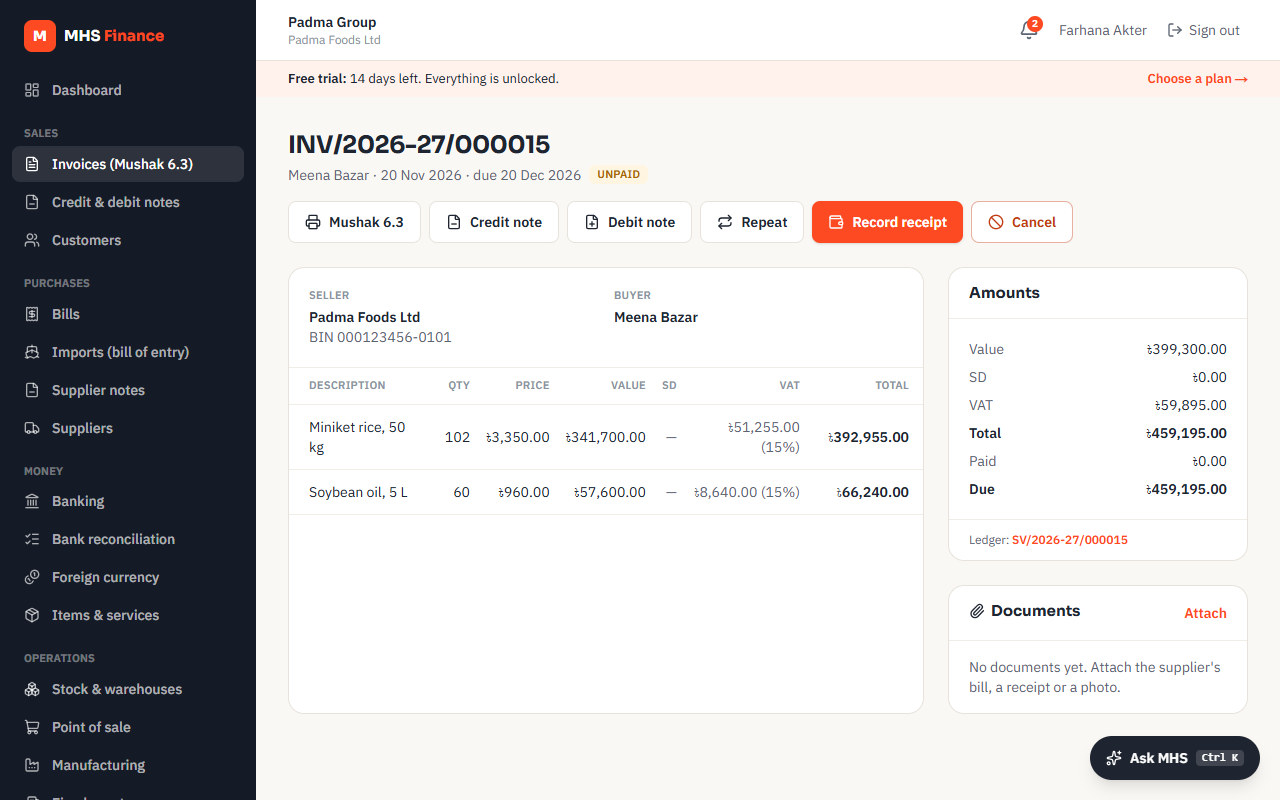
Invoices and Mushak 6.3
Issue VAT invoices, print Mushak 6.3 with a verification QR, and record payment on the spot.
Every sales invoice is a Mushak 6.3 tax invoice and is posted to the ledger the moment it is issued.
Issuing an invoice
- Open Invoices → New invoice and choose the customer (or add one with +).
- Add lines: an item or a description, quantity, unit price, discount, SD % and the VAT code.
- Choose Paid now into if the customer paid on the spot (cash, bank or bKash/Nagad); otherwise the invoice stays open until you record the receipt.
- Issue invoice. The number (INV/2026-27/000001…) is given in sequence per financial year.
VAT codes
| Code | Use for |
|---|---|
| STD15 | Standard rate, 15% |
| RED10, RED7_5, RED5, RED2 | Reduced rates for listed goods and services |
| ZERO_EXPORT | Exports, with export documents |
| ZERO_DEEMED | Deemed exports |
| EXEMPT | Exempt supplies |
| TT | Turnover-tax businesses |
VAT is worked out on the value including supplementary duty, line by line.
Printing and verification
Mushak 6.3 prints the invoice in the NBR layout with a QR code. Anyone who scans it sees a page confirming the invoice is genuine, its amount, VAT and whether it is paid.
Changing an invoice
Issued invoices can't be edited. Use a credit note (Mushak 6.7) to reduce or return, a debit note (6.8) to increase, or Cancel an unpaid invoice, which reverses its entry.
Foreign currency
For a customer abroad, set their currency (e.g. USD). Prices are typed in that currency and posted in Taka at the rate shown. See Foreign currency.